How to check your phone for spyware is a question many users ask after noticing unusual behavior or realizing that someone may have had unauthorized access to their device or accounts. Unfortunately, spyware is designed to avoid obvious detection, which makes random checks or a single security scan unreliable.
Effective detection requires a structured approach. Instead of assuming that battery drain or another unusual symptom proves spyware, check the device, applications, permissions, account activity, and security settings together.
This guide provides a practical process for checking Android phones and iPhones for signs of spyware or unauthorized monitoring, while explaining what each indicator can—and cannot—tell you.
Quick Navigation
Before Checking Your Phone: Consider Your Safety
If you suspect that a partner, former partner, family member, coworker, or another person with physical access to your phone may be monitoring you, think about safety before making major changes.
Removing an application, changing passwords, resetting the phone, or researching the situation on the device may alert someone who is monitoring it. The FTC recommends considering a separate trusted device when seeking help or making sensitive changes in situations involving stalkerware.
If personal safety or evidence preservation is involved, document important information before resetting or replacing the device when it is safe to do so.
- For a detailed response plan after a suspected compromise, see Spyware Removal: What to Do If Your Phone Is Already Compromised.
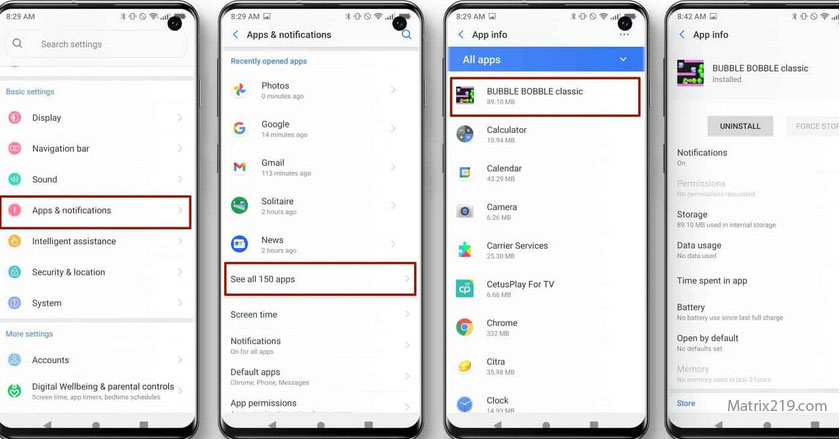
Step 1: Review Installed Apps Carefully
Start by reviewing the applications installed on the phone. Look for applications you do not recognize, did not intentionally install, or cannot explain.
Do not assume that every unfamiliar application is spyware. Phones contain system components, manufacturer utilities, accessibility services, device-management tools, and other software that may not have obvious names.
Pay closer attention when an unfamiliar application also has unusual permissions, special access, or a name that appears designed to imitate a legitimate system component.
If you identify an application that you believe is suspicious, investigate its permissions and purpose before removing it, especially if there may be a personal-safety or evidence-preservation concern.
Step 2: Check App Permissions
Review which applications can access sensitive functions such as the microphone, camera, location, contacts, files, messages, or other personal information.
The important question is not simply whether an application has a sensitive permission. Ask whether the permission makes sense for what the application is supposed to do.
On supported Android versions, the Privacy Dashboard can show which applications accessed certain permissions and when that access occurred. Android also allows permissions to be reviewed and changed from the application’s settings. Google’s Android Privacy Dashboard provides the current instructions.
On iPhone, review application access through Settings > Privacy & Security. Apple’s privacy controls allow you to review which apps have requested access to sensitive information and device features.
- For a deeper explanation of permissions that may be relevant to surveillance, see Spyware Permissions Explained.
Step 3: Check Accessibility and Special Access
On Android, some applications can receive additional capabilities through accessibility services or other special-access settings. These capabilities can be legitimate, but they deserve closer attention when an unfamiliar application has them without a clear reason.
Do not assume that accessibility access automatically means spyware. Accessibility features are essential for many users and are legitimately used by many applications.
Instead, check which applications have the access, why they need it, and whether you intentionally enabled it.
If an unfamiliar application has unusually powerful access and you cannot verify its purpose, treat the finding as a reason for further investigation rather than immediate proof of spyware.
Step 4: Check Device Management and Configuration Profiles
Device-management settings are particularly important because they can control parts of how a phone is configured.
On iPhone, go to Settings > General > VPN & Device Management. Apple documents this area as the place to review installed configuration profiles and device management. An organization-owned device may legitimately have a management profile installed, so an unfamiliar profile should be investigated rather than automatically deleted.
Apple also provides Safety Check under Settings > Privacy & Security > Safety Check. Safety Check can help review sharing, access, connected people, and certain account-security settings.
On Android, the exact device-management controls vary by Android version and manufacturer. Review device administrator or device-management settings when investigating an unfamiliar application with elevated control.
Step 5: Check Account Activity and Connected Devices
Not all surveillance happens through software installed directly on the phone. An attacker who has access to your email, cloud account, social-media account, or another online service may be able to see information without installing spyware on the device.
Review:
- Recent account sign-ins
- Connected or trusted devices
- Active sessions
- Recent password or recovery changes
- Unexpected authentication activity
- Applications or services connected to your account
- Unexpected synchronization or sharing settings
If you find an unfamiliar session or device, secure the account from a trusted device when possible and remove unauthorized access.
This distinction is critical: a compromised account can continue exposing information even after the phone itself has been cleaned.
For the next step after discovering unauthorized access, see How to Remove Hacker Access Safely.
Step 6: Review Battery and Data Usage as Supporting Evidence
Unusual battery drain, overheating, unexpected data usage, or unexplained background activity can be useful clues, but none of these symptoms proves that spyware is installed.
Battery problems can result from an aging battery, background applications, poor cellular reception, system updates, high screen usage, or other normal causes.
Similarly, increased data usage may come from legitimate synchronization, video streaming, cloud backups, software updates, or other applications.
The FTC lists battery drain, increased data usage, overheating, unexpected restarts, and another person knowing private information as possible indicators of stalkerware. These indicators are more meaningful when several appear together.
Treat unusual battery or data behavior as a reason to investigate further, not as a diagnosis by itself.
Step 7: Check for Security Updates
Make sure the operating system and applications are up to date.
Security updates address known vulnerabilities and reduce the opportunity for attackers to exploit outdated software. Apple currently recommends keeping devices updated as part of its general protection guidance, while Google recommends installing available security and system updates when responding to malware concerns.
An outdated phone is not proof of spyware, but delaying security updates unnecessarily increases the attack surface.
Step 8: Use Built-In Security Tools
Security tools can provide useful additional evidence, but they should not be treated as a definitive spyware detector.
On Android, Google Play Protect automatically checks applications for potentially harmful behavior and can warn about or remove harmful applications. It also scans applications installed from sources other than Google Play.
On iPhone, Apple’s built-in security architecture, privacy controls, Safety Check, and threat-notification system provide different layers of protection. Apple also offers Lockdown Mode for the small number of people who may face highly sophisticated targeted attacks.
Avoid installing multiple questionable “spyware detector” applications simply because they promise complete detection. More scanners do not automatically mean better visibility.
- For broader protection practices, see Mobile Device Security.
Step 9: Check Whether the Phone Has Been Rooted or Jailbroken
A rooted Android phone or jailbroken iPhone has had some of the platform’s normal security restrictions bypassed.
This does not automatically mean spyware is installed, but unauthorized rooting or jailbreaking can make certain types of compromise easier and may indicate that someone has modified the device.
The FTC specifically recommends checking for rooting or jailbreaking when investigating suspected stalkerware.
If you did not intentionally modify the device and discover evidence that it has been rooted or jailbroken, further investigation is warranted.
Step 10: Decide Whether a Factory Reset Is Necessary
A factory reset can remove many application-level threats, but it should not be the first response to every unusual phone symptom.
Consider a reset when there are multiple credible indicators of compromise that cannot be resolved through normal account, application, and configuration checks.
Before resetting:
- Secure important accounts from a trusted device when possible.
- Preserve evidence if the situation requires it.
- Make sure you understand what data needs to be preserved.
- Review how backups and application restoration will work.
After the reset, reinstall applications selectively from trusted sources rather than automatically restoring every application from an old backup when spyware or stalkerware is suspected.
For more detail, see When a Factory Reset Works and When It Doesn’t.
What Detection Cannot Guarantee
No consumer checklist can guarantee that every form of advanced spyware will be detected.
Highly sophisticated targeted spyware can use vulnerabilities and techniques that are difficult for ordinary users to identify. Apple describes mercenary spyware as an extremely rare and highly sophisticated threat that targets a very small number of people.
For most users, however, structured checks of applications, permissions, accounts, device-management settings, updates, and security controls can provide much more useful information than relying on a single symptom or scanner.
The goal is not absolute certainty. It is to identify credible warning signs, remove unauthorized access where possible, and reduce future risk.
What to Do If You Find Something Suspicious
Do not immediately assume that every unfamiliar setting or application is malicious.
First determine what it is, who installed it, what access it has, and whether the device is legitimately managed by an employer, school, family member, or another authorized organization.
If you confirm or strongly suspect spyware, avoid continuing to experiment on the potentially compromised device if doing so could create a personal-safety risk. Use a trusted device to secure important accounts and seek appropriate assistance when necessary.
- For a complete response process, continue with Spyware Removal: What to Do If Your Phone Is Already Compromised.
FAQ
Can spyware hide from all detection methods?
Some highly sophisticated spyware can be difficult for ordinary users to detect. However, many consumer-level surveillance threats leave useful indicators involving applications, permissions, account access, device settings, or unusual behavior. No single check should be treated as definitive.
Should I reset my phone immediately if I suspect spyware?
Not necessarily. If there is a credible personal-safety concern, an immediate reset may alert the person monitoring the device or destroy evidence. Secure your situation first, then decide whether a reset is appropriate.
Are antivirus or security apps enough to detect spyware?
No. Security tools can detect some malicious applications and known threats, but they do not replace account-security checks, permission reviews, device-management checks, or investigation of unusual access.
How often should I check my phone for spyware?
There is no universal schedule. Periodic privacy and security reviews are useful, especially after installing unfamiliar applications, granting sensitive permissions, changing important accounts, or noticing unexplained security events.
Is spyware easier to detect on Android or iPhone?
The platforms expose different security and privacy controls, so there is no simple rule that one is always easier to inspect. Android provides tools such as the Privacy Dashboard and Play Protect, while iPhone provides features such as Safety Check, privacy controls, device-management settings, and additional protections for high-risk users.
Does unusual battery drain mean my phone has spyware?
No. Battery drain has many common causes. It becomes more relevant when combined with other unexplained indicators such as unauthorized account activity, unfamiliar applications, unexpected permissions, or evidence that someone has access to private information.
Can someone monitor my accounts without installing spyware on my phone?
Yes. A compromised email, cloud, social-media, or other online account can expose information without requiring spyware to be installed locally. That is why account activity and connected devices should be checked alongside the phone itself.